Chrome MV3 permissions, honestly: activeTab, optional permissions, and the update that disables your extension
Not legal advice. Mechanics come from developer.chrome.com (Declare permissions, Permission warning guidelines, activeTab, permissions API) and the Chrome Web Store "Use of Permissions" policy, archived 2026-10-15 (Asia/Shanghai). Chrome changes; re-read the pages before you ship. This article links none of our products.
A privacy policy and the Privacy practices tab describe what you do with data. The manifest decides what you can reach. If the two disagree, users find out at install time, and reviewers find out sooner. This piece is about getting the manifest right and describing it truthfully.
1) Lead answer
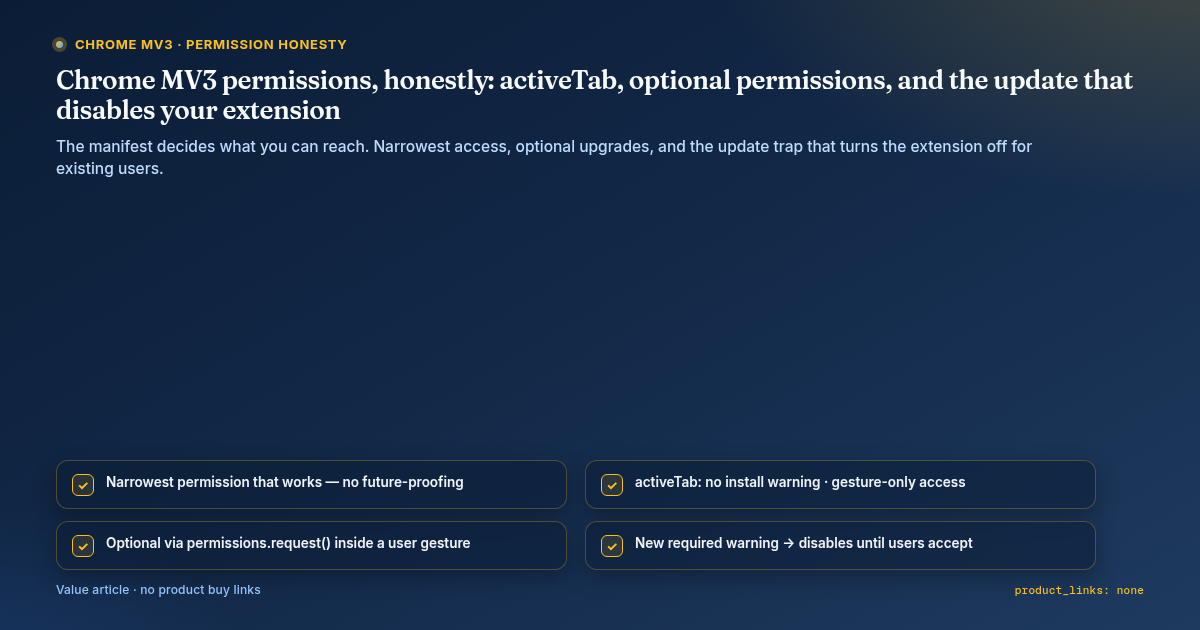
- Ask for the narrowest permission that works. The policy says that if more than one permission could implement a feature, you must request the one with the least access, and you must not "future proof" by requesting permissions for features you haven't built.
activeTabshows no install warning. It grants temporary access to the current tab only after a user gesture (action click, context-menu item, keyboard command, omnibox suggestion). Access lasts while the user stays on that origin and ends when they navigate away or close the tab. It never coverschrome://pages.- Optional permissions are granted at runtime, via
permissions.request()called inside a user gesture. That lets you explain why at the moment the user turns the feature on. - Adding a required permission that has a warning disables your extension for existing users until they accept it. Adding an optional permission does not.
- Some permissions cannot be optional:
debugger,declarativeNetRequest,devtools,geolocation,mdns,proxy,tts,ttsEngine,wallpaper(ChromeOS). If you need one, it has to be inpermissionsfrom day one, or added later at the cost of an update prompt.
2) The five manifest keys
| Key | Granted | Warning? |
|---|---|---|
permissions |
At install | Changes may trigger a warning |
optional_permissions |
At runtime, by the user | Prompt when requested |
host_permissions |
At install | Changes may trigger a warning |
optional_host_permissions |
At runtime | Prompt when requested |
content_scripts.matches |
At install | Changes may trigger a warning |
Host permissions cover more than injection: fetch() from the service worker, reading tab url/title/favIconUrl, webRequest, cookies, and declarativeNetRequest header changes. Make sure your listing does not say "we only touch the page you click" when host_permissions says https://*/*.
Warnings can hide each other. The tabs warning does not show if you also request <all_urls>. A short warning list is not evidence of narrow access, so don't write listing copy based on what the dialog happened to show.
3) Pick the mechanism per feature
| Feature runs… | Use | What you can honestly say |
|---|---|---|
| Only when the user clicks / uses a shortcut on the current page | activeTab (+ scripting if injecting) |
"Reads the current page only when you click the button." |
| On specific sites the user opts into later | optional_host_permissions + permissions.request() |
"Asks for access to a site when you enable it for that site." |
| Hosts discovered at runtime | "https://*/*" in optional_host_permissions, request specific origins |
Same as above. Don't claim "all sites" if you only request on demand |
| Always, on fixed sites, in the background | host_permissions with exact patterns |
List those domains by name |
| One of the non-optional APIs | permissions |
Say it plainly and explain why |
Docs-confirmed trade-off: required permissions mean fewer prompts and guaranteed presence; optional permissions mean less standing access, a just-in-time explanation, and upgrades that don't disable the extension.
4) The update trap
The Permission warning guidelines say this directly: when an update adds a permission that triggers a warning, Chrome disables the extension until the user accepts the new permission. For a paid or licensed extension, that means active users may suddenly find the tool off, and every one of them has to say yes again.
Before shipping an update that touches permissions:
- Diff
permissions,host_permissions, andcontent_scripts.matchesagainst the live version. All three can trigger the warning. - Ask whether the new capability can be optional instead. An upgrade that only adds optional permissions does not disable the extension.
- Test the upgrade path with Google's Extension Update Testing Tool, or pack it manually with the same .pem and update over the old install. You'll see the exact prompt users will see.
- Write the changelog line before release: what new access, and why.
- Remove permissions you no longer use (
permissions.remove()). Note: re-requesting a removed permission "usually" re-adds it without a prompt, so don't tell users that removal forces a fresh consent.
How long a disabled extension stays disabled, and whether Chrome re-prompts users who ignore the banner: Not verified.
5) Listing and onboarding language
Say:
- "Works on the tab you're viewing, only when you click the icon" (true for
activeTab). - "Optional: grant access to example.com to enable auto-fill there" (true for optional host permissions).
- "Needs
proxypermission at install because it routes traffic. Chrome won't let this be optional."
Don't say:
- "No permissions required" when the install dialog shows any warning.
- "Only reads the current page" alongside
<all_urls>inhost_permissions. - "We'll never ask for more access" (you can't promise future manifests).
- "Works in incognito / on local files" without telling users to turn it on themselves on the extension's details page. Both need a user toggle, and you can check them with
extension.isAllowedIncognitoAccess()/isAllowedFileSchemeAccess().
6) Self-check before you submit
- Every entry in
permissions/host_permissionsmaps to a shipped feature (no future-proofing). - Every click-triggered page feature tried
activeTabfirst. - Every non-core feature uses optional permissions, requested inside a click handler.
- Non-optional APIs are listed and justified in plain words.
- Listing copy matches the broadest access in the manifest, not the shortest warning list.
- The upgrade prompt was tested with the same signing key.
- The exact current warning text for each permission was checked against the Permissions reference. Not verified here.
Not verified
- Exact current warning strings per permission in Chrome stable.
- Whether adding only optional permissions changes Chrome Web Store review time.
- Whether users who ignore the "new permissions" prompt are re-prompted automatically.
Comments
Join the discussionNo comments yet. Be the first to comment.